
Data Extraction API

The Data Extraction API lets you extract CXone data so you can use it in external reporting systems. For example, you can extract QM workflow data or CXone interaction metadata. You can filter data only by date range. After you send a request, the system prepares the data and returns a temporary download link.

You can automate extraction by writing scripts that call the API on a schedule instead of running requests manually. For performance and stability, the API allows only one active call per tenant at a time, and you must wait at least 30 seconds between requests. These limits help ensure that data is retrieved efficiently and that extraction jobs complete without interruption.

Usage Guidelines
To ensure reliable performance, follow these guidelines when using the Data Extraction API:

  • Use /jobs/sync to start data extraction.
    This endpoint prepares the data and returns a temporary download URL that stays valid for 30 seconds.
  • Expect a short delay before data becomes available.
  • New interaction data may take up to 30 minutes to appear in extraction results.
  • Space out API calls.
    Leave at least 30 seconds between requests to avoid errors and keep performance stable.
  • Use incremental date ranges.
    Each request should extractonly the new data created since your last extraction. For ongoing extractions, an ideal date range is1 day to ensure efficient and reliable processing.
  • Limit date ranges for historical extraction.
    For older data, use date ranges of up to two weeks per request to keep processing fast and efficient.

For more information, see Data Extraction API in the online help.

To use this API, you must first generate an access token (to be used as an authorization bearer token when calling Data Extraction APIs).

Follow these steps to generate the access token:

1. Make sure you are logged in to CXone as a user with sufficient permissions to generate an access key: Italian Trulli

My Access Key is required for generating your own access key.

Access Key is required for generating access keys for other users.

2. Generate an access key and a secret key:

    a. To generate an access key for yourself, follow the steps below: In CXone, navigate to User -> My Profile -> Access Keys and click Generate New Access Key.
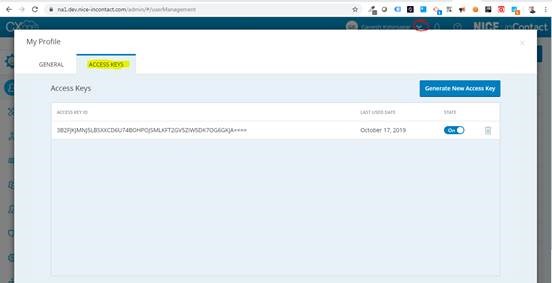
Italian Trulli
    b. To generate an access key for another employee: In CXone, navigate to Employees -> Edit Employee -> Access Keys and click Generate New Access Key.
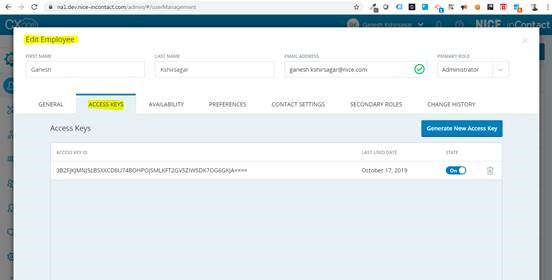
Italian Trulli

3. Copy the secret key to a secure place, as it will be visible only once.

4. Generate an access token by calling the following API:

URL: https://na1.nice-incontact.com/authentication/v1/token/access-key

Type: POST Request Body: { "accessKeyId": , "accessKeySecret": }

Extract the "access_token" from the response body. Use this string as a bearer token authorization header when calling the Data Extract API.

Note (regardless of the token acquired): Verify entity permissions, because authorization checks are applied and may result in success or unauthorized.

Loading...